Making longer AI videos in ComfyUI: chaining clips and the Wan Animate loop
Two honest ways past the 5 second limit in ComfyUI: chaining Wan 2.2 clips from the last frame, and letting the Wan Animate 2 loop follow a long driving video.
A Wan 2.2 image to video clip at the kit’s settings is 81 frames at 16 fps. That’s about 5 seconds. For a profile loop or a quick reel moment, that’s plenty. For anything with a story, or an ad longer than a hook, it isn’t.
There are two ways to go longer with the workflows in the AI Character Kit. One is a manual trick for image to video. The other is built into the Wan Animate 2 workflow, as long as you have a long driving video. I’ll cover both, including where each gets shaky.
Why not just raise the frame count?
It’s the obvious first idea. Workflow 03 even works out its length from a Duration and FPS pair, so you could type 10 seconds instead of 5.
I wouldn’t. The kit’s settings (480 x 832, 81 frames, 4 steps) were tested at this length, at about 2 minutes per clip on an RTX 3090 Ti. Longer runs cost more VRAM and time, and Wan 2.2 was built around clips of roughly this size. Short pieces joined together is the more dependable route.
How do you chain image to video clips?
The idea is simple. The last frame of clip one becomes the starting image for clip two.
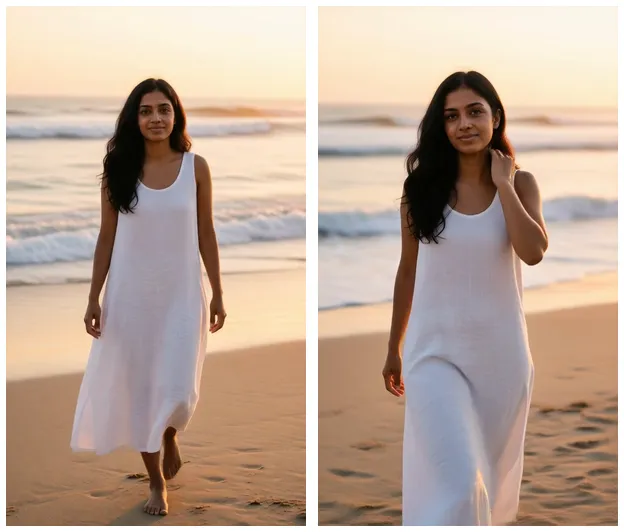
First frame (left) and last frame (right) of the kit’s beach sample. The right one is what you’d feed back in.
Step by step:
1. Make your first clip as normal. Workflow 03, your still, a motion prompt. Pick the best seed.
2. Grab the last frame. Any editor can export it, or use ffmpeg:
ffmpeg -sseof -0.5 -i clip1.mp4 -update 1 -q:v 1 last.pngIt keeps overwriting last.png until only the final frame is left.
3. Run workflow 03 again. Load last.png as the image, keep the size at 480 x 832, and write the next motion. Keep it continuous with what came before. If she was walking toward the camera, the next prompt might be “she stops, looks at the lens and smiles, hair moving in the sea breeze, handheld phone camera, natural motion”. Keep the camera phrase the same across clips so the shot doesn’t suddenly change character. Wan 2.2 motion prompts has more on writing these.
4. Trim the repeated frame. Clip two starts on the same frame clip one ended on, so if you join them straight you get a tiny hold. Drop clip two’s first frame:
ffmpeg -i clip2.mp4 -vf "trim=start_frame=1,setpts=PTS-STARTPTS" -an clip2_trim.mp45. Join them. All clips need the same size and frame rate, which they will if you didn’t change the settings:
ffmpeg -i clip1.mp4 -i clip2_trim.mp4 -i clip3_trim.mp4 \
  -filter_complex "[0:v][1:v][2:v]concat=n=3:v=1:a=0" \
  -c:v libx264 -crf 18 -pix_fmt yuv420p long.mp4
Three passes gets you roughly 15 seconds.
Where does chaining go wrong?
Quality drifts a little each pass. Clip two starts from a frame of a 480p video, not from your clean original still. That frame is a bit softer, and any small oddity in it (a slightly wrong hand, a smudged earring) gets carried forward and sometimes grows. By the third or fourth pass the character can look a touch less like herself. I keep chains to two or three links for that reason.
The last frame might be a bad frame. If clip one ends mid blink or mid hair flip, clip two starts from that awkward moment. Prompts that end on a settled pose (“then smiles at the camera”) give you a cleaner handoff. You can also pick a frame a few before the end and cut clip one there.
Speed can jump at the seam. Each clip decides its own pacing. If clip one is a slow walk and clip two comes out brisk, you’ll feel the join. Same verbs, same “slowly”, same camera phrase help a lot.
There’s also a cheaper option people forget: don’t chain at all. Make each shot from a fresh still (your base image edited into a new pose or scene) and cut between them. Short-form video is full of cuts anyway, a cut hides any mismatch, and every shot starts from full quality. For most social content, that’s what I’d actually do.
How does the Wan Animate 2 loop work?
Wan Animate 2 handles length differently, because it has something to follow: the driving video. The kit’s workflow 04 uses the native loop in ComfyUI (StartLoop and EndLoop nodes inside the Motion Transfer subgraph) and keeps going until it has covered the whole driver. You load a 15 second driver and you get a 15 second swap. Nothing to duplicate or rewire.
Under the hood it works in chunks of 81 frames, set by the fragment_length value:
- Each new chunk starts from the last frame of the previous one, as a motion anchor.
- That repeated frame is removed, so every extra chunk adds 80 new frames.
- The workflow reads the driver’s frame count, works out how many chunks it needs, and trims the tail so the output has exactly as many frames as the driver.
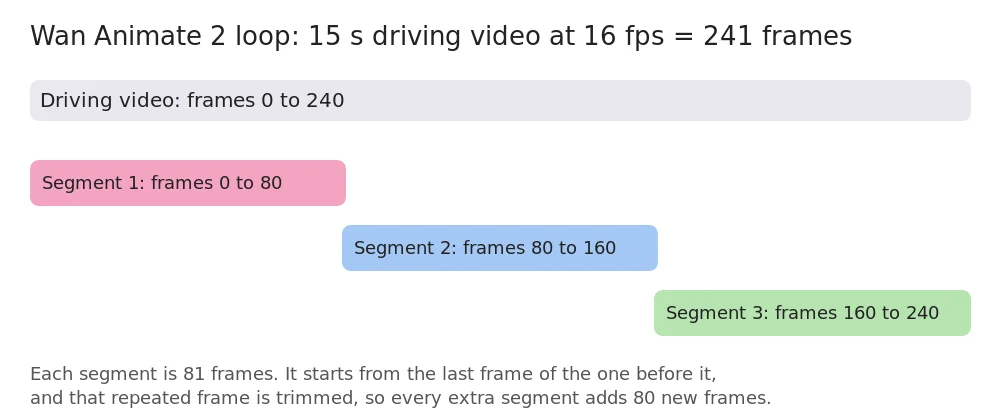
For a 15 second driver at 16 fps (241 frames), that’s three chunks covering frames 0 to 80, 80 to 160 and 160 to 240. The official ComfyUI Wan Animate 2 docs describe the same loop, and note it needs ComfyUI 0.36.0 or newer. If the loop nodes show up red, update first.
If you change fragment_length, keep it a legal Wan length: 81, 85, 89 and so on (4n + 1).
How should you prepare a long driver?
The workflow takes frames from the driver one to one. It doesn’t resample. So a 30 fps phone video gets treated as if every frame is a step of motion, which makes the result run slow when played at 16 fps. Convert it first:
ffmpeg -i drive_raw.mp4 -vf fps=16 -an drive.mp4The -an drops the audio. If it’s your own voice, keep a copy of the original and lay it back on the finished swap in an editor. Lip movement follows the driver, so it lines up.
The usual driver rules still apply, maybe more so over a longer clip: similar framing to your character image, a clear face, steady light, and footage you own or generated yourself. Wan Animate 2 character swap, step by step covers the prompts and the product trick.
What should you expect from a long swap?
Time first. A 5 second swap at 480 x 848 takes about 3 minutes on an RTX 3090 Ti. A longer driver means more chunks, so the run grows with length. The guide only gives the 5 second figure, so time a longer one on your own card before planning a batch.
Then check the seams. The one frame anchor keeps motion continuous, and the workflow’s side by side output (swap next to driver) makes it easy to scrub through and spot a hiccup at a chunk boundary. If one shows up, it’s at a predictable place: every 80 frames after the first chunk.
I’d also treat very long swaps with some caution. Identity and background have more chances to wander over many chunks, and I can’t promise how a 60 second run holds up on every driver. A sensible approach is to get a 5 second test right, then a 15 second one, and only then go longer.
Which approach should you use?
If you have a performance to follow, use the Wan Animate loop. It’s the cleaner path to length because the driver keeps the motion coherent. If you’re working from stills and text, chain two or three image to video clips, or skip chaining and cut between fresh shots. Not sure which tool fits the shot? Wan Animate 2 vs a regular image to video breaks it down.
The AI Character Kit includes workflow 04 with the loop already wired, the chunk math done for you and a side by side output for checking seams, plus workflow 03 for the shorter clips.