Wan Animate 2 vs a regular image to video: when to use which
Wan 2.2 image to video or Wan Animate 2? What each one needs, what it controls, how long it takes on 24 GB, and a simple rule for picking the right one.
Both of these turn your AI character into a moving clip. Both run on the same family of Wan models. And both take a couple of minutes on a 24 GB card. So it’s fair to ask why the AI Character Kit ships two video workflows instead of one.
The short answer: image to video invents the motion from a sentence, and Wan Animate 2 copies the motion from a video. That one difference decides almost everything else, including which one you should open first.
What does each one actually take as input?
Wan 2.2 image to video (workflow 03) needs two things. An image, which becomes the first frame, and a motion prompt like “she turns her head toward the camera and smiles softly”. The model works out the rest.
Wan Animate 2 (workflow 04) needs three. A character image that says who she is, a driving video that says how she moves, and a prompt that describes her looks and the background. The motion comes from the driver, frame by frame.
So the real question is: can you describe the motion you want in one sentence, or do you need to show it?
How do they compare side by side?
These are the kit’s own settings and the times from the guide, measured on an RTX 3090 Ti after the models were loaded once.
| Image to video (Wan 2.2 14B) | Wan Animate 2 | |
|---|---|---|
| Motion comes from | Your text prompt | A driving video |
| Size | 480 x 832 | 480 x 848 |
| Frames | 81 (about 5 s at 16 fps) | 81 per chunk |
| Steps | 4 (2 high noise + 2 low noise) | 6, lcm sampler |
| Time per 5 s clip | about 2 min (roughly 119 s) | about 3 min (roughly 182 s) |
| Background | Comes from your image | Comes from your prompt |
| Lip movement | Generic, if any | Follows the driver |
| Length | One 81 frame clip per run | Loops through the whole driver |
The background row surprises people. In image to video, the scene is whatever’s in your picture. In Wan Animate 2, the background follows the text prompt, not the reference image or the driver. That’s handy. You can film a driver in a messy kitchen and still get your character in a tidy bedroom.
When is image to video the better pick?
Most of the time, honestly. If the motion is simple and the scene is already right in your image, image to video is quicker, needs nothing extra, and keeps the exact look of your still. Things like:
- A smile and a head turn for a profile loop
- Hair moving in the wind on a beach shot
- A slow walk toward the camera
- A sip of coffee, steam rising
Here’s a sample clip from workflow 03. The source was a still of Aanya, a fictional character, taking a mirror selfie. The motion came from a short prompt, nothing else.
The weak spot is precision. You can ask for “she waves and says hi”, but you can’t choose exactly when the wave happens, how big it is, or what her mouth does. For social loops that’s fine. For an ad where she needs to hold a product up at second 2 and point at the label at second 4, it’s frustrating. If you’re getting good results already, Wan 2.2 motion prompts will get you a bit more control from the text alone.
When does Wan Animate 2 win?
When the motion is a performance. Talking to camera with natural hand gestures. A specific little dance. Showing a product at the right angle. Unboxing something. Anything where the timing matters or where you’d struggle to put it into words.
It’s also the one to use when lip movement matters. Because the mouth follows the driver, you can put the driver’s audio back on the result, if it’s your own voice, and it stays in sync.
Here’s the kit’s product demo. On the left is the driver, Mia, holding a pink BERRY GLOW tub. On the right is the swap, with Seo-yeon doing the same performance in a hanbok. Both people and the brand are fictional.
Watch the hand gestures and the laugh. You’d never get that timing from a text prompt.
What does Wan Animate 2 need that image to video doesn’t?
Two extra things, and both take a bit of effort.
A driving video you’re allowed to use. Film yourself, use footage you own, or generate one. What you shouldn’t do is lift a creator’s TikTok and swap your character into it. That’s someone else’s performance and it can break both copyright and publicity laws.
A character image prepared for the swap. Wan Animate copies motion, not objects. If the driver holds a tub and your character image has empty hands, the product tends to vanish or turn into a blob. So the product goes into the character image from the start, and gets named again in the prompt.
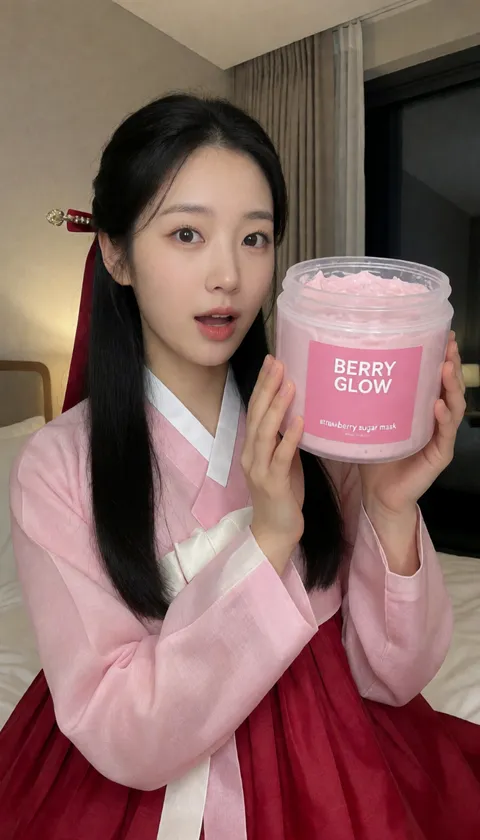
The reference used for the swap above. The tub is already in her hands. Framing roughly matches the driver, waist up to waist up.
The full step by step, prompts included, is in Wan Animate 2 character swap, step by step.
Can you use both together?
Yes, and this is my favourite trick. The Mia driver above wasn’t filmed. She was made with the kit’s character workflow (01), then animated with image to video (03). That clip then became the driver for workflow 04.
So the chain looks like this:
- Make a second fictional person holding something the same size as your product (workflow 01).
- Animate them with image to video, a “talking to the camera while holding up the product” style prompt (workflow 03).
- Use that clip as the driver for your real character (workflow 04).
You get the precision of a driver without ever filming anything. The catch is that you’re at the mercy of step 2 for the performance, so you may need a few seeds before you get a driver you like.
What about disk and VRAM?
Both fit on a 24 GB card. The image to video files come to roughly 33 GB. Wan Animate 2 adds about 22 GB on top, since it reuses the same umt5 text encoder. With both installed you’ll want room to spare, and 32 GB of system RAM for either.
Restart ComfyUI between the two if you’re running them back to back. Leftover models in VRAM are the most common reason the second workflow runs out of memory.
The official model pages are worth bookmarking: Wan2.2-I2V-A14B for image to video and Comfy-Org/Wan-Animate-2 for the swap model.
So which one should you open first?
My rule: if you can say it in one sentence, use image to video. If you’d have to act it out, use Wan Animate 2.
Start with image to video for your character’s first clips. It’s faster, simpler and teaches you what the model likes. Move to Wan Animate 2 when you hit a shot where you need the timing or the mouth to be right, which for product content happens pretty quickly.
Both workflows come set up in the AI Character Kit, with the settings from the table above and a guide that walks through when to use each.